
ReasoningCampus · SHL Candidate Guides
Use this SHL mobile or desktop checklist before your assessment. Check device compatibility before choosing your setup. ReasoningCampus offers independent SHL preparation that includes practical checks of screen size, answer entry and any agreed access arrangements. This lesson shows you how to compare supported devices using original practice tasks.
Independent learning resource · English · Content revised 16 October 2026
View full preparationSHL mobile or desktop: device compatibility comes first
At ReasoningCampus, we practise the connection between seeing, reasoning and entering an answer. Device compatibility is the first check: use the requirements for your complete assessment assignment. If you solve a question correctly but lose track of a column while scrolling, the next practice goal is interface handling. Choose a supported setup first, then rehearse with comparable original tasks so that device friction does not hide your reasoning skills.
Screen size: compare supported devices for comfort
| Question | What to check |
|---|---|
| Is this device supported? | The invitation or assessment requirements |
| Can I see the full task? | Tables, labels, instructions and response area |
| Can I enter the answer accurately? | Selection, typing or dragging on the chosen setup |
| Can I use agreed access arrangements? | Confirmed features and assistive technology compatibility |
| Will power and connection last? | A realistic pre-session check |
Do not install an unfamiliar input tool on the day merely because a guide recommends a stylus or a shortcut. A familiar, permitted setup is a better basis for preparation than a supposedly optimal setup you have never used.
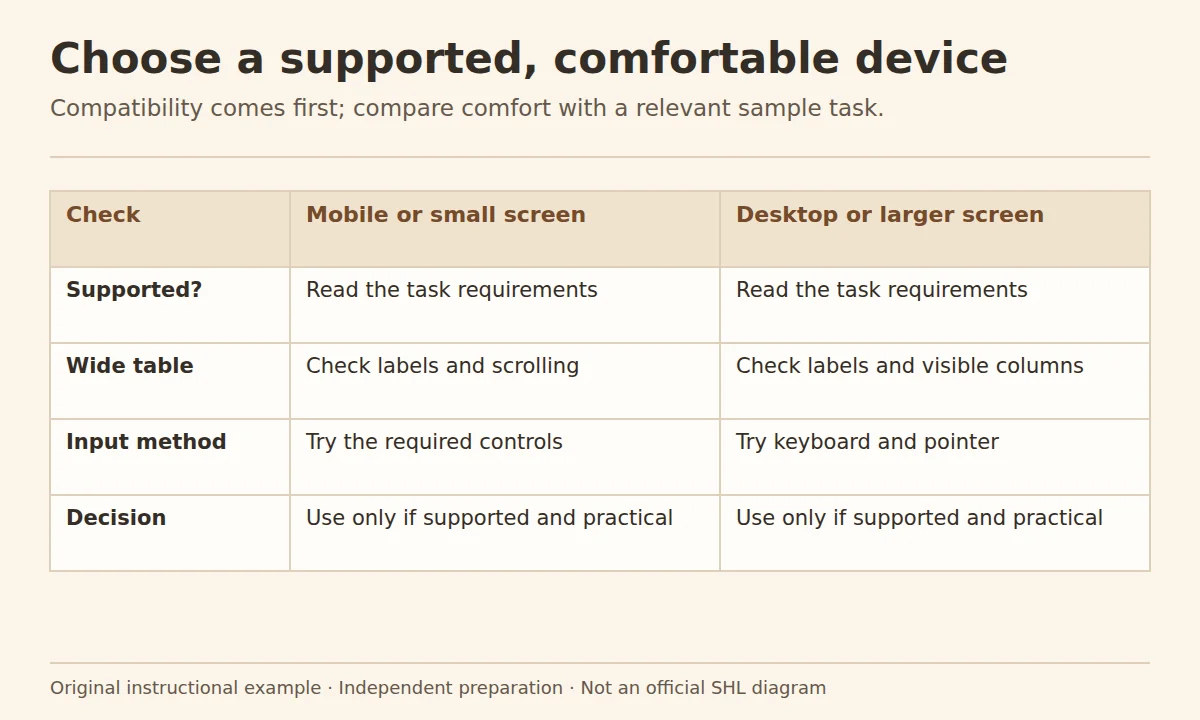
Answer entry: a two-minute practice comparison
Outside the actual assessment, open an original table question on each supported device you are considering. Find a named row, read two values and enter the calculated result. Note whether you had to zoom repeatedly, lost the row label or selected the wrong response. Repeat with new values so that memory does not make the second device look artificially faster.
Compare answer entry as well as speed: did the device record the response you intended? Screen size matters when scrolling hides a label or response area. This is a usability check, not proof that a particular device improves official scores.
Worked example: a wide numerical table
A task asks for operating cost as a percentage of revenue. On a narrow screen, the row name remains visible but the revenue column requires horizontal scrolling. Before calculating, write or retain the two labelled values together if the rules permit. Check that both belong to the same row and year. On a wider screen, you may see them together, but you still need the same denominator check. Screen size changes the handling, not the mathematics.
Prepare the environment around the device
Check charging, an appropriate place to work and any required audio or camera setup before the timed session. If notifications can be managed in an allowed way, do that beforehand. Avoid changing operating-system settings during a test unless the support instructions require it. Device readiness includes knowing whom to contact if the supported setup does not work.
A concrete screen check before the session
| Check | Pass condition for your own rehearsal |
|---|---|
| Labels | You can read the row, column and unit together |
| Input | Your intended selection is visibly recorded |
| Scrolling | Moving the page does not make you lose the reference row |
| Access | Any agreed assistive feature works in the supported flow |
SHL’s compatibility guidance says availability is assessment-specific. A product described as mobile-first does not establish that every task in a multi-assessment invitation supports the same phone. Check the entire assignment, not only the first activity.
Questions about SHL mobile or desktop
Is desktop always better?
Choose a device that is supported for the whole assignment and lets you read and respond comfortably. A desktop may make wide tables easier to view, while a familiar mobile device may suit an assessment designed for it. Accessibility arrangements and the assessment instructions come first.
Should I rotate my phone or zoom in?
Check the tutorial and supported behaviour first. A layout change can alter what you see; practise handling the original sample rather than discovering it during a timed item.
Can I change devices halfway through?
Do not assume that you can. Ask the organiser or follow the specific support instructions if a device fails during an active session.
Sources and scope
The linked support page contains product-specific and historical system requirements. Do not install an obsolete browser merely to match an old minimum-version example; use a currently supported setup that passes the checks for your assigned session.
Where to go next
Use the access guide for login issues, the adjustments guide for support arrangements and the video guide for recording preparation.
